
If your website uses any cookies beyond those strictly needed to make it function, you need a GDPR cookie banner before those cookies fire. That means no analytics, no advertising pixels, no embedded social media scripts loading until the visitor has actively chosen to allow them. Scrolling past the banner, staying on the page, or doing nothing at all does not count as consent under UK law.
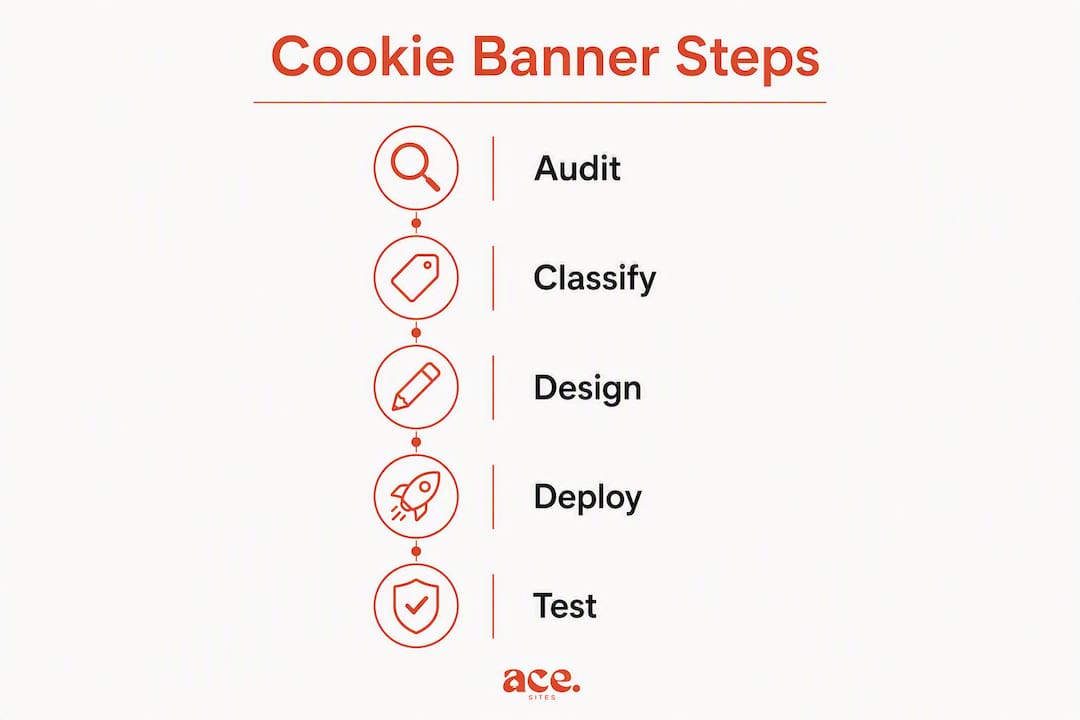
A compliant cookie consent banner must do three things: present an active opt-in (a real button click, not implied agreement), give reject and accept options equal visual weight, and block all non-essential scripts until a choice is made. You also need to record that consent with enough detail to prove it later.
Here are three things you can do right now:
- Audit your cookies. Open your browser's developer tools, go to the Application tab, and list every cookie your site sets. Note the name, provider, purpose, and expiry.
- Implement script blocking. Non-essential scripts must not run before consent. Use
type="text/plain"on script tags or a tag manager's consent mode to hold them back. - Add accept, reject, and manage options. Your banner needs all three, with accept and reject given the same visual prominence.
Table of Contents
- Why does UK law require a cookie banner?
- What does valid consent look like for cookie banners?
- Which cookies need consent and which are exempt?
- How should your banner look and read?
- How to implement a cookie banner and block non-essential cookies
- How do you test your consent flow and keep evidence?
- What are the most common cookie banner mistakes?
- How Ace-sites helps you deploy a compliant cookie banner
- Key takeaways
- The part most small business sites get wrong
- Your website, sorted: get a compliant site with Ace-sites
- Useful sources and further reading
Why does UK law require a cookie banner?
Two pieces of legislation govern cookies on UK websites: the Privacy and Electronic Communications Regulations 2003 (PECR) and the UK GDPR. The Information Commissioner's Office (ICO) is the supervisory authority that enforces both.
Here is what each instrument requires in practice:
- PECR requires you to tell users that cookies are present, explain what they do, and obtain consent before setting any non-essential cookie. It applies to any website accessed by UK visitors, regardless of where the site is hosted.
- UK GDPR sets the standard for what valid consent looks like: freely given, specific, informed, and unambiguous. It also requires you to keep records of consent and allow users to withdraw it at any time.
- ICO guidance makes clear that passive actions such as scrolling or continued browsing do not constitute valid consent. Consent must come from a deliberate, positive action.
If your site processes personal data belonging to EU residents, EU GDPR requirements apply alongside UK PECR. In practice, most UK sites serving any EU visitors need to satisfy both frameworks simultaneously.
Strictly necessary cookies are exempt. You do not need consent for cookies that are genuinely required for the site to work. Session cookies that keep a user logged in, shopping basket cookies, and load-balancing cookies all qualify. What does not qualify: analytics cookies, advertising pixels, A/B testing tools, or any cookie that primarily serves your business rather than the user's immediate request.
The ICO's position is unambiguous: treating inactivity as consent is unlawful. Your banner must wait for a real click before any non-essential cookie fires.
What does valid consent look like for cookie banners?
Valid consent under UK GDPR and PECR has five characteristics. Your banner must satisfy all of them, not just the ones that are easy to implement.
- Freely given. The user must not be penalised for refusing. Blocking access to content unless someone accepts cookies (a "cookie wall") is generally not considered freely given consent by the ICO.
- Specific. Consent must be given per category of cookie, not as a single blanket agreement. A user should be able to accept analytics while rejecting marketing cookies.
- Informed. The banner must name the categories of cookies, explain their purpose, and link to your full cookie or privacy policy.
- Unambiguous. There must be no room for doubt. Pre-ticked boxes, greyed-out reject buttons, or copy that implies consent through continued use all fail this test.
- Active opt-in. The user clicks a button. That is the only mechanism that works.
What to do and what to avoid
Do:
- Give "Accept all" and "Reject all" buttons equal size, colour weight, and placement.
- Label buttons plainly: "Accept all cookies", "Reject all cookies", "Manage preferences".
- Link directly to your cookie policy or privacy notice from the banner.
- Allow users to change their preferences at any time via a persistent link (often in the footer).
Avoid:
- Pre-ticked boxes in the preferences modal.
- Making "Reject" a text link while "Accept" is a solid button.
- Nudging users towards acceptance through visual hierarchy — the ICO explicitly flags this as non-compliant.
- Vague category names like "Other cookies" with no explanation.
- Setting any non-essential cookie before the user has interacted with the banner.
What to record as evidence
Every consent event should generate a record containing: a unique identifier (UUID) for that consent instance, a timestamp, the categories the user accepted or rejected, the URL where consent was given, and the user agent string. Open-source consent implementations commonly capture all of these fields as a minimum. Store these records securely and retain them for as long as you rely on that consent to process data.
Which cookies need consent and which are exempt?
The distinction between strictly necessary and non-essential cookies is the single most important classification decision you will make. Get it wrong and you are either blocking cookies you do not need to, or firing ones you should be holding back.

| Category | Example cookies | Consent required? |
|---|---|---|
| Strictly necessary | Session ID, CSRF token, load balancer, shopping basket | No |
| Functional / preference | Language preference, saved form data, accessibility settings | Usually no, but disclose |
| Analytics | Google Analytics (_ga, _gid), Hotjar, Matomo | Yes |
| Marketing / advertising | Facebook Pixel, Google Ads conversion, retargeting pixels | Yes |
| Social media embeds | YouTube autoplay, Twitter/X widgets, LinkedIn Insight Tag | Yes |
Functional cookies occupy a grey area. If a preference cookie genuinely serves the user (remembering their chosen language, for example) and does not process personal data beyond what is needed for that function, it may not require consent. If it also feeds data back to a third party, it does. When in doubt, ask for consent.
How to audit your cookies
Run your site through a crawler or browser inspection before you write a single line of banner code. Here is a quick method:
- Open Chrome DevTools, go to Application > Cookies, and reload the page without clearing existing cookies.
- Note every cookie name, domain, expiry, and whether it is first-party or third-party.
- Cross-reference each cookie against the provider's documentation to confirm its purpose.
- Repeat the audit after login, after adding items to a basket, and after any user interaction that might trigger new scripts.
Cookies that process personal data fall under UK GDPR principles, so your privacy notice must link clearly to the cookie details you have catalogued. Keep the audit results as a living document — every time you add a new tag or plugin, update it.
How should your banner look and read?
The GOV.UK Design System cookie banner component is the clearest publicly available reference for compliant UK banner design. It recommends a persistent banner that stays visible until the user makes a choice, followed by a brief confirmation message and an easy route back to preferences.

Wording templates
Very short (for a minimal banner): Short (standard): Expanded (for sites with multiple cookie categories): The preferences modal should list each category with a toggle, a short description of what those cookies do, and the names of any third-party providers involved.
Accessibility checklist
Accessibility is not optional. A banner that a screen reader cannot navigate, or that traps keyboard focus, produces invalid consent from those users and may breach the WCAG 2.2 focus visibility requirements.
- Wrap the banner in a
<dialog>element or userole="dialog"witharia-labelledbypointing to the banner heading. - Trap keyboard focus within the banner until a choice is made, then return focus to the main content.
- Announce the banner to screen readers using
aria-live="polite"or by moving focus to the banner on load. - Ensure all buttons meet a minimum 4.5:1 colour contrast ratio against their background.
- On mobile, buttons must be large enough to tap comfortably (at least 44×44 CSS pixels) and the banner must not obscure critical page content without a scroll path. The ICO confirms that banners designed only for desktop risk producing invalid consent from mobile users.
Pro Tip: Test your banner with VoiceOver on iOS and TalkBack on Android, not just with a desktop screen reader. Mobile screen reader behaviour differs enough that desktop-only testing misses real accessibility failures.
Visual design guidelines
- Accept and reject buttons must be visually equivalent. Same size, same button style, same colour weight. One solid and one outlined is a dark pattern.
- Do not use colour alone to distinguish accept from reject. Add a text label that makes the action unambiguous.
- Keep the banner above the fold on mobile without covering the entire viewport.
- Use sufficient spacing between buttons so a thumb tap cannot accidentally hit the wrong one.
How to implement a cookie banner and block non-essential cookies
Implementation has a clear sequence. Skipping steps, particularly the blocking step, is the most common reason sites fail an ICO audit.
- Complete your cookie audit. You cannot build a compliant banner until you know what you are managing.
- Write or update your cookie policy. It must list every cookie by name, category, purpose, provider, and expiry. Link it from the banner.
- Build the preferences modal. One toggle per category, with descriptions. Strictly necessary cookies should be shown but locked in the on position.
- Block non-essential scripts before consent. Change
type="text/javascript"totype="text/plain"on any script tag that sets non-essential cookies. Add adata-categoryattribute to identify which consent category it belongs to. - Activate scripts on consent. When the user accepts a category, find all matching script tags, change their type back to
text/javascript, and re-append them to the DOM so the browser executes them. - Store the consent record. Write a first-party cookie or localStorage entry containing the UUID, timestamp, accepted categories, URL, and user agent. Consent records with these fields are the standard evidence format for demonstrating compliance.
- Expose a preferences link. Add a persistent "Cookie preferences" link in your footer that reopens the modal at any time.
Pseudocode for the blocking and activation pattern
// On page load — scripts are blocked
<script type="text/plain" data-category="analytics" src="/js/analytics.js"></script>

// On consent granted for 'analytics'
function activateCategory(category) {
  document.querySelectorAll(`script[data-category="${category}"]`).forEach(el => {
    const newScript = document.createElement('script');
    newScript.src = el.src;
    document.head.appendChild(newScript);
  });
}

// Store consent record
function storeConsent(accepted, rejected) {
  const record = {
    uuid: crypto.randomUUID(),
    timestamp: new Date().toISOString(),
    accepted: accepted,
    rejected: rejected,
    url: window.location.href,
    userAgent: navigator.userAgent
  };
  localStorage.setItem('consent_record', JSON.stringify(record));
  document.cookie = `consent_uuid=${record.uuid}; max-age=31536000; path=/; SameSite=Lax`;
}
Google Tag Manager and Consent Mode
If you use GTM, enable Google Consent Mode v2. Set all consent signals to denied by default in your GTM configuration, then update them to granted when the user accepts the relevant category. Libraries that integrate with tag managers can inject GTM only after consent and support consent versioning so users are re-prompted if you change cookie purposes.
For single-page applications (React, Vue, Next.js), fire the banner on initial render and re-check consent state on route changes where new third-party scripts might load.
Pro Tip: Ad-blockers and filter lists will suppress scripts whose filename contains "cookie" or "banner". Self-hosting your consent script and naming it something neutral like consent.min.js reduces the risk that the banner fails to load for a portion of your visitors.
Subdomains and cross-site consent
If you run multiple subdomains (for example shop.yourdomain.co.uk and blog.yourdomain.co.uk), you can share consent by setting the consent cookie on the root domain (.yourdomain.co.uk). Document this in your cookie policy so users know their choice applies across the whole domain.
How do you test your consent flow and keep evidence?
Testing is not a one-time task. Run it before launch, after any tag changes, and periodically as part of your compliance review.
Functional test checklist
- Clear all cookies and local storage, then load the site. Confirm no non-essential cookies are set before any banner interaction.
- Click "Reject all". Confirm no non-essential cookies appear. Confirm the confirmation message shows.
- Click "Accept all". Confirm the correct scripts fire and the consent record is written.
- Open the preferences modal. Toggle individual categories on and off. Confirm only the selected categories activate.
- Click the footer "Cookie preferences" link. Confirm the modal opens and reflects the current saved state.
- Repeat all of the above on a mobile device (iOS Safari and Android Chrome at minimum).
Automated and extended testing
- Use Playwright or Cypress to automate the no-consent and full-consent journeys as part of your CI pipeline.
- Test with a privacy extension (uBlock Origin, Privacy Badger) active to confirm the banner still loads.
- Simulate a returning visitor by setting a consent cookie manually and confirming the banner does not re-appear.
- Test with a screen reader (NVDA on Windows, VoiceOver on macOS) to confirm the banner is announced and navigable.
Pro Tip: Screenshot the banner at each state (pre-consent, post-accept, post-reject, preferences modal) and store those screenshots alongside your consent log exports. If the ICO ever queries your implementation, dated screenshots are the fastest way to demonstrate what users saw.
Evidence to retain
- Consent log exports (UUID, timestamp, categories, URL, user agent) for the retention period you have documented.
- Screenshots of the banner at each state, dated and version-labelled.
- Your cookie audit document, updated whenever you add or remove tags.
- Version history of your consent configuration, particularly when you change cookie purposes or add new categories.
What are the most common cookie banner mistakes?
Most compliance failures are not subtle. They are the same handful of errors appearing repeatedly.
Red flags to check for:
- Analytics or advertising cookies firing on page load before any banner interaction.
- "Accept" as a solid button and "Reject" as a plain text link or a smaller, lower-contrast button.
- Pre-ticked boxes in the preferences modal.
- A single "I agree" button with no reject option.
- Vague category names ("Performance cookies") with no explanation of what they actually do.
- No way to withdraw consent after giving it.
- Banner disappearing on scroll without recording a choice.
Pre-launch checklist
Go through this before you publish any changes to your cookie setup:
- No non-essential cookies fire before consent (verify in DevTools with a clean session).
- Accept and reject buttons are visually equivalent.
- Each cookie category has a plain-English description.
- The preferences modal has per-category toggles, with strictly necessary locked on.
- A consent record is written on every interaction (accept, reject, or partial selection).
- The footer contains a persistent "Cookie preferences" link.
- The cookie policy is up to date and linked from the banner.
- The banner is tested on mobile (iOS Safari, Android Chrome).
- The banner passes keyboard navigation from first focus to final choice.
- Consent configuration is version-controlled.
When you add new tags or change purposes
Prior consent may no longer be valid if you add new tracking tags or change the purposes for which you process data. When that happens, increment your consent version number and re-prompt all returning visitors. Do not assume existing consent covers new purposes — it does not.
How Ace-sites helps you deploy a compliant cookie banner
Ace-sites includes built-in support for cookie consent banners as part of the website platform. You do not need to write blocking scripts from scratch or manage a separate consent tool.
Here is what the platform provides:
- A configurable cookie banner with accept, reject, and manage preferences options built in.
- A preferences modal with per-category toggles and plain-English descriptions you can edit.
- A privacy policy link field so your banner always points to your current policy.
- The ability to host your consent scripts within the platform, keeping them on your own domain and reducing ad-blocker interference.
- Mobile-optimised banner layouts that work across screen sizes without additional CSS work.
Quick setup steps for Ace-sites customers:
- Go to your site settings and enable the cookie banner.
- Configure your cookie categories and add descriptions for each.
- Paste your privacy policy URL into the policy link field.
- Set your consent cookie expiry in line with your cookie lifecycle.
- Publish and test with a clean browser session.
If you need a bespoke configuration, for example cross-subdomain consent sharing or custom GTM Consent Mode integration, the Ace-sites support team can help you set that up.
Key takeaways
A compliant GDPR cookie banner requires active consent before non-essential cookies fire, equal prominence for accept and reject, per-category controls, and a stored consent record with UUID and timestamp.
| Point | Details |
|---|---|
| Block before consent | No non-essential cookies may fire until the user clicks accept; silence is not consent under PECR or UK GDPR. |
| Equal accept and reject | Both buttons must be visually equivalent; making reject a text link while accept is a solid button is a dark pattern the ICO flags as non-compliant. |
| Record every consent event | Store UUID, timestamp, accepted categories, URL, and user agent for every interaction to demonstrate compliance if queried. |
| Re-prompt on changes | If you add new tags or change cookie purposes, prior consent is no longer valid and you must re-obtain it from returning visitors. |
| Ace-sites built-in banner | Ace-sites provides a configurable consent banner with preferences modal, privacy policy link, and mobile-optimised layout as part of the platform. |
The part most small business sites get wrong
Most cookie banner advice focuses on the legal text and the button labels. That is the easy part. The harder part, and the one that actually determines whether you are compliant, is the technical blocking layer.
A banner that looks correct but does not actually prevent analytics scripts from firing before consent is not a compliant banner. It is a compliant-looking banner sitting on top of a non-compliant implementation. The ICO's enforcement focus has shifted towards exactly this gap: the difference between what the banner says and what the cookies actually do.
Small business sites are particularly exposed here because they often rely on plugins or third-party embeds that set cookies automatically, regardless of what the banner does. A YouTube embed fires cookies. A Google Maps widget fires cookies. A Facebook share button fires cookies. None of these are blocked by adding a banner unless you have also implemented the technical blocking layer that holds those scripts back until consent is given.
The practical implication: your cookie audit is not a one-time task. Every time you add a new plugin, embed, or marketing tag, you need to check what it sets and whether your blocking configuration covers it. Compliance is a maintenance task, not a launch task.
Your website, sorted: get a compliant site with Ace-sites
Sorting out a cookie banner is one of those tasks that sounds straightforward until you are knee-deep in script tags and GTM configurations. Ace-sites takes the technical side off your plate. The platform comes with a built-in consent banner, a preferences modal you can configure without touching code, and mobile-optimised layouts that work from day one.

For small business owners who want a professional website without the agency price tag, Ace-sites gives you everything you need: built-in SEO tools, a blog manager, contact forms, and cookie consent support, all in one place. The done-for-you website build option means you pay nothing until you have seen the finished site. If you want to see what the platform can do before committing, take a look at the full features list and start your free trial today.
Useful sources and further reading
The following primary sources are the ones to bookmark for ongoing compliance work. They are the references the ICO itself points to, and they are what you should cite if you ever need to demonstrate due diligence.
- ICO: Cookies and similar technologies — The ICO's main guidance page on PECR and cookie consent. The authoritative source for what valid consent requires and what dark patterns to avoid.
- ICO: How do we manage consent in practice? — Covers consent withdrawal, re-prompting after changes, and mobile consent validity.
- ICO: Guidance on the use of cookies and similar technologies (PDF) — The full technical guidance document, useful for developers who need the detailed legal reasoning behind blocking requirements.
- GOV.UK Design System: Cookie banner component — The reference implementation for banner layout, wording, and interaction patterns. Directly applicable to any UK public-facing website.
- EDPB Guidelines on Consent (PDF) — The European Data Protection Board's detailed guidance on consent validity, relevant for sites serving EU visitors alongside UK ones.
- W3C WCAG 2.2: Focus not obscured — The accessibility standard covering keyboard focus visibility, directly applicable to modal banner implementations.
- MDN Web Docs: Cross-site scripting — Background reference for developers implementing script injection patterns in consent flows.
This article provides general information about UK cookie consent requirements and is not legal advice. For your specific situation, consult the ICO's current guidance directly or seek advice from a qualified legal professional.