
Go to business.google.com/add, sign in with a Google Account, then claim or create your listing and complete verification. That is the whole process in one sentence. Most UK small businesses can get a verified profile live within a short time.
Three things to do first:
- Check eligibility. You must meet customers face to face, either at a physical premises or by visiting them. Online-only businesses do not qualify.
- Complete verification. Until you verify, you cannot edit business info or respond to reviews.
- Fill in the core fields. Business name, category, phone number, website, and opening hours are the details Google uses to match you to local searches.
Verification review can take up to 5 business days after you submit, so start the process before you plan to announce the profile publicly.
Table of Contents
- Who is eligible for a Google Business Profile in the UK?
- What to gather before you start your setup
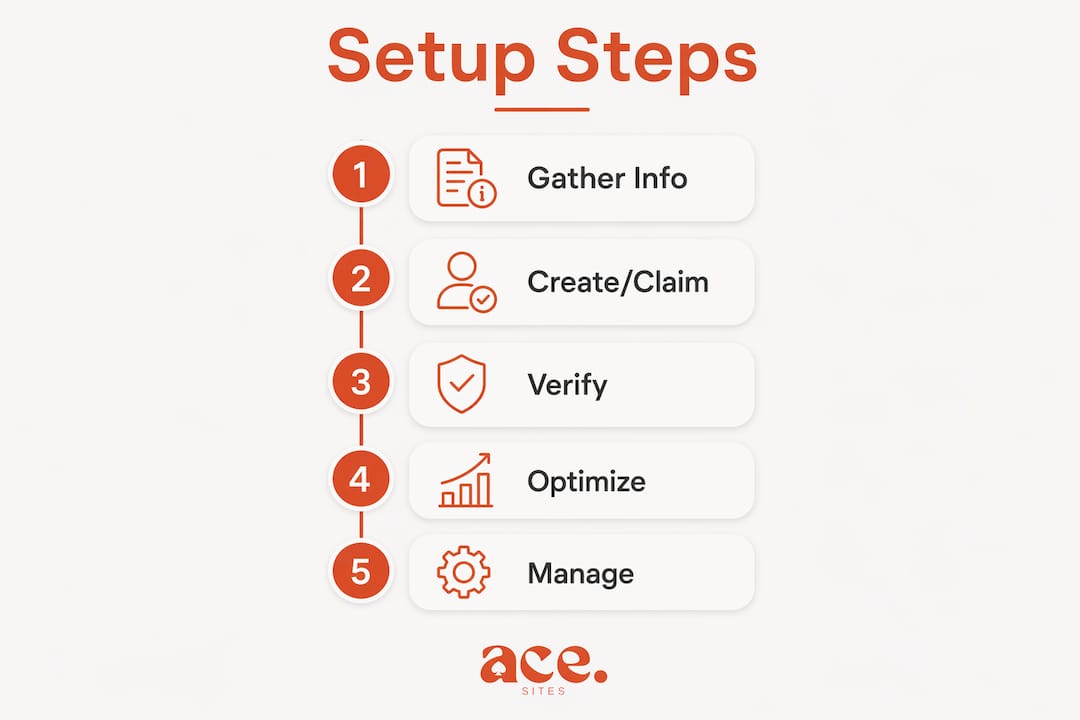
- How to create or claim your profile step by step
- How verification works and what to expect
- How to optimise your profile for local leads
- Day-to-day management and fixing common problems
- Launch checklist: tick these off before you go public
- Key takeaways
- The thing most small businesses get wrong about Google Business Profile
- Your Google Business Profile works harder with a proper website behind it
- Useful sources and further reading
Who is eligible for a Google Business Profile in the UK?
The rule is straightforward: your business must make face-to-face contact with customers. That covers high-street shops, restaurants, tradespeople, salons, clinics, and any service provider who visits customers at their homes or workplaces.
Online-only businesses are not eligible. If you sell exclusively through an e-commerce site and never meet customers in person, Google will not approve a profile. The same applies to properties listed for rent, virtual offices with no staff on site, and businesses that operate solely by post or phone.
Appointment-only businesses, such as a mobile beautician or a freelance bookkeeper who visits clients, do qualify. You simply set up as a service-area business rather than a storefront.
Eligibility in plain English: if a customer could physically visit you, or you could physically visit them, you are eligible. If every transaction happens online with no in-person element, you are not.
Pro Tip: If you work from home and do not want your home address appearing publicly on Google Maps, choose the service-area business option during setup. You can hide your address and list the postcodes or towns you cover instead.
What to gather before you start your setup
Rushing into setup without the right information to hand is the most common cause of delays. Collect everything below before you open business.google.com/add.

Account access
Use a Google Account linked to a company-branded email address. This makes it much simpler to add managers later or transfer ownership if your business grows.
Business details
- Exact trading name (as it appears on your signage or Companies House registration)
- Full business address, or a note that you want to hide it for a service-area business
- Primary phone number
- Website URL (your Ace-sites address works perfectly here)
- Opening hours, including any seasonal variations
- Primary business category and up to two secondary categories
- Up to 20 service areas if you are a mobile or visiting business
Evidence and media
Have at least five photos ready: a cover image, your logo, interior and exterior shots if you have a premises, and a team or work-in-progress photo. If Google asks for video verification, you will need to record an unedited clip on your mobile phone showing your signage and the surrounding street.
How to create or claim your profile step by step
Follow these steps in order. Do not skip ahead or create a second profile if you find one already exists for your business.
- Go to business.google.com/add and sign in with your Google Account.
- Search for your business name. Google will show any existing profiles that match. If yours appears, select it and choose Claim this business rather than creating a new one. Creating a duplicate can trigger an automatic suspension.
- If no profile exists, select Add your business to Google and enter your business name.
- Choose your business type: storefront (customers come to you), service-area business (you go to them), or both.
- Enter your details: address or service areas, phone number, website, and category.
- Select a verification method from the options Google presents. Available methods depend on your business type and location.
- Submit and wait. Do not edit your business name, address, or category while verification is pending, as changes can restart the process.
If someone else has already verified your business (a previous owner or employee), use the Request ownership flow on the same page. Google will contact the current owner and, if they do not respond within seven days, transfer control to you.
How verification works and what to expect
Google offers several methods. Which ones appear for your business depends on your category, location, and how much information Google already holds about you.
| Method | How it works | Typical timeline | Key watch-out |
|---|---|---|---|
| Postcard | Google mails a PIN to your business address | up to 5 business days delivery | Code expires after 30 days; do not request a second code while waiting |
| Phone or SMS | Google calls or texts a PIN | Instant | Only available for certain business types |
| PIN sent to a verified business email | Instant | Email domain must match your website | |
| Video recording | Upload an unedited mobile clip | Review up to 5 business days | Must be an unedited video showing signage and street |
| Live video call | Google agent joins a call while you are on site | Scheduled within business hours | Must be physically present; show signs, landmarks, and proof of management |
Troubleshooting common rejections
If your verification is rejected or you receive a review issues message, the most frequent causes are: missing or unclear business signage in a video, a pre-recorded clip rather than a live recording, or a business name on the profile that does not match what is visible on site. Fix the specific issue flagged, then resubmit. For video verification, record an uninterrupted clip that shows your street sign, your business signage, and a management-only area such as a till or stock room.
How to optimise your profile for local leads
A verified profile is just the starting point. The businesses that appear at the top of local search results keep their profiles active and complete.
Start with the core fields:
- Choose your primary category carefully. It carries more weight than any secondary category. Pick the one that most precisely describes what you do (for example, Plumber rather than Contractor).
- Add your website link. If you are building with Ace-sites, this is where your site URL goes. A live website improves click-through rates from your profile significantly.
- Set accurate opening hours, including bank holidays.
- List your services with descriptions and prices where possible.
Keep the profile active:
- Add new photos regularly. Profiles with photos receive more direction requests and website clicks than those without.
- Publish Google Posts for offers, events, or news. Posts appear directly on your profile in search results.
- Enable the booking widget if your business takes appointments. Customers can book without leaving Google.
- Answer questions in the Q&A section before customers have to ask them.
Measure what is working:
Use Google Business Profile Insights to track how many people found you via search versus Maps, what search terms they used, and how many clicked to call or visit your site. If impressions are low after two weeks, your primary category is usually the first thing to revisit.
Pro Tip: Search Google for your primary category plus your town (for example, "electrician Bristol") and look at the top three profiles in the local pack. If their category label differs from yours, test switching to match it.
Day-to-day management and fixing common problems
Once verified, your profile needs regular attention to stay effective.
Weekly tasks: respond to every review (positive and negative), check that your hours are still accurate, and publish at least one post per month. For messaging, keep response times under 24 hours or Google may disable the feature.
Suspensions are usually triggered by a policy violation: keyword stuffing in the business name, a virtual office address, or a sudden change to name and category shortly after verification. If your profile is suspended, review Google's guidelines, correct the issue, and submit a reinstatement request through the Business Profile Help page.
Duplicate listings are a frequent problem, particularly for businesses that have traded for several years. If you find an unverified duplicate, use the Request ownership flow to merge it rather than leaving two profiles live. Duplicates confuse customers and can suppress both listings in search.
Adding managers: go to your Business Profile settings, select Managers, and add a team member's Google Account email. Assign them the Manager role rather than Owner unless you intend to transfer primary control. Using a company email for the primary owner account keeps things tidy if staff change.
Launch checklist: tick these off before you go public
Work through this list before you tell customers your profile is live.
- Profile status shows Verified
- Business name matches your signage exactly
- Address or service areas are correct
- Phone number is active and answered
- Website link opens correctly (test on mobile)
- Opening hours are accurate, including any exceptions
- At least five photos uploaded (cover, logo, premises or work examples)
- Services listed with descriptions
- Booking link enabled if you take appointments
- Messaging switched on and response time set
- Contact form on your linked website is working
- At least one review visible (ask a recent customer before launch)
Only announce the profile to your customers once verification is confirmed. Sending people to an unverified profile before it is fully live creates a poor first impression.
Key takeaways
A verified Google Business Profile is the single most effective free tool a UK local business can use to appear in Google Search and Maps.
| Point | Details |
|---|---|
| Verify before anything else | You cannot edit core business info or respond to reviews until verification is complete. |
| Eligibility requires in-person contact | Online-only businesses do not qualify; service-area businesses can hide their address. |
| Primary category drives local ranking | Choose the most precise category available; it outweighs all secondary categories combined. |
| Active profiles outperform static ones | Regular posts, photos, and review responses keep your profile ranking and converting. |
| Ace-sites pairs directly with GBP | Add your Ace-sites website URL to your profile to improve click-through and support bookings. |
The thing most small businesses get wrong about Google Business Profile
Most business owners treat their Google Business Profile as a one-time form to fill in and forget. That is the mistake. The profile is closer to a social channel than a directory listing: Google actively rewards profiles that are updated, responded to, and linked to a working website.
The other thing people underestimate is the primary category. Owners often choose something broad because it feels safer. It is not. A precise category tells Google exactly what searches to show you for. A plumber who lists as Contractor will lose ground to a competitor who lists as Plumber every single time.
Pairing your profile with a proper website matters more than most guides admit. When someone finds you on Google Maps and clicks through to a broken page or a Facebook profile, the conversion is gone. A clean, mobile-ready site with a booking form or contact button is what turns a profile view into an actual enquiry. That is where local business schema and a well-structured site come in: they reinforce the signals your GBP sends to Google and make it easier for customers to act.
Get the verification done, pick the right category, and link a website that actually works. Everything else is refinement.
Your Google Business Profile works harder with a proper website behind it
Getting your GBP live is step one. The businesses that convert profile views into paying customers are the ones with a fast, mobile-ready website sitting behind that Google listing.
Ace-sites is built for exactly this: a professional website for a local UK business, live in under a day, with no agency fees and no technical knowledge needed. The platform includes built-in SEO tools, mobile-optimised templates, a blog manager, contact forms, SSL, and booking widget embeds that connect directly to your GBP booking link. You can explore all the features or browse real sites built on the platform to see what is possible.
If you would rather hand the build to someone else entirely, the done-for-you website service gets you a complete, custom site with no upfront payment until you have seen and approved it.
Useful sources and further reading
Official Google documentation
- Get started with Google Business Profile — eligibility rules and account setup
- Add or claim your Business Profile — the create vs claim workflow
- Verify your business on Google — all verification methods and troubleshooting
- Video verification guide — what to record and upload
- Service-area business setup — hiding your address and setting service areas
Ace-sites resources
- How to rank locally on Google — practical local SEO tactics that complement your GBP
- Local business schema guide — structured data that supports your profile signals
- Ace-sites features — booking widgets, SEO tools, and templates
Google updates its verification policies periodically. If the method you expect is not available, check the Google Business Profile Help centre directly for the latest guidance.