
The quickest way to embed Instagram on your website is Instagram's own native embed for a single post or profile, copied straight from the three-dot menu and pasted into your site's Custom HTML block. If you want a live, auto-updating feed of your whole grid, you need a hosted widget instead, because native embeds don't refresh on their own.
Two things catch people out every time: the account must be public, and any live feed needs a connected token that renews itself, or the feed quietly breaks.
- Single post, quick job: copy the post URL, use Instagram's embed option, paste the code into your page.
- Live feed, ongoing job: sign up with a hosted widget, connect your account, paste the snippet.
- Official references: Instagram's own embed help and Meta's developer oEmbed documentation cover the native route in full. If you'd rather someone else handled the whole thing, Ace-sites builds this straight into your site for you.
Key Takeaways
Native embed suits a single post and costs nothing, while a hosted widget with automatic token renewal is the only practical way to keep a live Instagram feed working without constant manual fixes.
| Point | Details |
|---|---|
| Start with native embed | Use Instagram's three-dot menu and Embed option for one-off posts, free and instant. |
| Upgrade to a widget for live feeds | Choose a hosted widget only once you need automatic, ongoing updates across your grid. |
| Automatic token renewal is essential | Manual token refreshing is the most common reason live feeds break; pick a provider that renews automatically. |
| Test the published page, not the editor | Webflow and similar builders often show a placeholder in preview mode, so always check the live site. |
| Ace-sites handles this for you | Ace-sites offers custom embed blocks and a done-for-you option for readers who want Instagram live without the setup work. |
Table of Contents
- Methods to embed Instagram on your website compared
- How do you embed a single Instagram post?
- Setting up a hosted widget for a live Instagram feed
- Where to paste the embed code on WordPress, Webflow, Wix, and Shopify
- Why isn't my embedded Instagram feed showing up?
- How Ace-sites makes embedding Instagram straightforward
- What actually matters when you embed Instagram
- Get your Instagram feed live without the technical hassle
- Sources
Methods to embed Instagram on your website compared
You've got four realistic routes, and which one fits depends on how often your content changes and how much fiddling you're happy to do.
- Native embed – Free, takes two minutes, but only shows one post at a time and needs re-doing whenever you want fresh content. Best for a landing page announcing a specific offer or event.
- Hosted widget – A small monthly cost, but it updates itself and handles the technical token side for you. Best for a homepage gallery or shop page that should always look current.
- Platform plugin or app – Built into site builders like Shopify's app store or WordPress plugin directories; convenient if you're already living inside that ecosystem, though quality and upkeep vary between developers.
- Developer API (oEmbed) – Full control over layout and behaviour, but you're writing and maintaining code yourself. Only worth it if you've got development resources on tap.
If you're not sure which to pick, start with the native embed. It costs nothing and takes no setup. Only move to a hosted widget once you're actually finding yourself updating that single post every week, because at that point the manual approach is costing you more time than the widget subscription would.
How do you embed a single Instagram post?
Embedding one post is the fastest win on this list, and it's entirely free. Here's the desktop flow, step by step.
- Open the post or profile on instagram.com in a browser (not the mobile app).
- Click the three dots in the top right corner of the post.
- Select Embed from the menu that appears.
- Click Copy Embed Code in the pop-up window.
- Paste that code into your website's Custom HTML block, embed widget, or the equivalent raw code area your platform provides.
- Publish the page and check it on the live site, not just the editor preview.
If you need the profile or post URL rather than the embed code itself, right-click the post and choose "Copy Link", or tap the paper-plane share icon and select "Copy Link" on mobile. You'll want this URL handy if you're using the oEmbed method or a hosted widget that asks for it directly.
One catch with the raw code: some website editors strip out script tags for security reasons, which is why the embed shows blank even though you pasted correctly. If that happens, look for a dedicated "Embed" or "HTML" element rather than a plain text block.
Pro Tip: Wrap the embed code in a simple container with max-width: 100% and overflow: hidden, because Instagram's embed script sets its own minimum width that can force a horizontal scrollbar on narrow phone screens. A basic wrapper div fixes this in nearly every case.
Remember, this only works for public accounts, and it only ever shows the one post or profile you embedded, according to Instagram's own embed guidance.
Setting up a hosted widget for a live Instagram feed
A native embed is fine for one post. It's not a sensible long-term fix for a whole gallery that should stay current, because someone has to manually swap the code out every single time you post something new.
Hosted widgets solve this by connecting to your account through OAuth, the same authentication handshake that lets apps like Buffer or Hootsuite post on your behalf, and refreshing an access token in the background so your feed keeps pulling new posts automatically. This token handling is the part most people underestimate. Community troubleshooting threads consistently point to manual token refreshing as the single most common cause of a broken feed, which is exactly why a good hosted widget promises automatic renewal rather than leaving it to you.

The trade-off is straightforward: you gain a live, self-updating gallery with proper layout options and comment moderation, but you're relying on a third-party script and usually paying a small subscription for it.
Before you commit to a provider, check for:
- Automatic token renewal, stated explicitly, not just "reconnect if it breaks".
- Basic moderation, so you can hide a post that doesn't suit your site.
- Responsive layout options that work on mobile without extra CSS from you.
- Clear GDPR handling, since embedding third-party scripts counts as sharing visitor data with an external service.
Open-source examples on platforms like GitHub show the same underlying pattern: the provider gives you a JavaScript or iframe snippet, and you paste it into whichever site builder you're using.
The setup flow itself rarely changes between providers: sign up, connect your Instagram account, choose a grid or carousel layout, copy the snippet, then paste it into your site and test the published page.
Pro Tip: Most live-feed widgets need a business or creator account linked to a Facebook Page to authenticate properly. If you're still on a personal account, switch it in your Instagram settings before you try to connect a widget, or the connection step will simply fail.
Where to paste the embed code on WordPress, Webflow, Wix, and Shopify
Every platform gives you a slightly different door to walk through, but the destination is always the same: a raw HTML or embed area.
- WordPress (Gutenberg): add a Custom HTML block for a single post, or edit your theme template if you want the feed to appear site-wide on every page.
- Webflow: drag in an Embed element and paste the code there. The Designer canvas often shows a grey placeholder box instead of the actual feed, so always check the published site before assuming something's broken.
- Wix: use the HTML iFrame or Custom Embed element from the Add panel. Wix can be fussier about width, so test on an actual phone rather than the built-in mobile preview.
- Shopify: paste site-wide snippets into your theme's code just before the closing
</body>tag, or drop the embed into a specific section using a theme block. If you'd rather not touch theme code, a dedicated app from the Shopify App Store manages this for you with less risk of breaking something else.
On placement, less is more. A homepage hero or an about page works well for one or two embedded posts; a dedicated gallery section suits a full feed. Cramming several separate embeds onto one page multiplies your chances of something rendering oddly, and it slows the page down for no real benefit.
Why isn't my embedded Instagram feed showing up?
Most embed problems trace back to one of five causes, roughly in order of how often they actually happen.
- Blank box on the page. Confirm the account is public, confirm you pasted into an actual HTML/embed element rather than a plain text field, then check the live published page rather than the editor.
- Widget worked, then stopped. This is almost always an expired access token. Confirm your provider handles automatic renewal; if it doesn't, you'll need to manually reconnect the account periodically.
- Feed looks broken on mobile. Wrap the embed in a container with a sensible max-width, since Instagram's script imposes its own minimum width that can push content off-screen on smaller devices.
- Nothing loads and the browser console shows errors. A strict Content Security Policy on your site can silently block the embed script. Add
instagram.comandfacebook.comto your CSP's frame and script sources to fix this. - Page feels slower after adding the feed. Limit how many posts display at once, and use a lazy-loading option if your widget provider offers one.
On that last point, third-party embed scripts are a genuine, measurable drag on load times, which is exactly why performance tools like Google PageSpeed Insights or GTmetrix flag them separately from your own site's code. Testing your page after adding any embed, not just before, catches this early.
How Ace-sites makes embedding Instagram straightforward
If all of this sounds like more fiddling than you fancy, that's precisely the gap Ace-sites was built to close for small business owners who'd rather be running their business than debugging embed code.
- Ace-sites gets a professional site live in under a day, with custom embed blocks ready to take your Instagram code without you touching a line of script.
- Built-in SEO tools and a blog manager come as standard, so your Instagram content sits alongside content that's already working to get you found.
- Browse the Ace-sites portfolio to see how other small businesses have set theirs up, then head to the AI website builder if you'd like a managed setup done for you.
What actually matters when you embed Instagram
Most guides on this topic bury the decision under too many options before telling you what to actually do. The truth is simpler than the internet makes it sound: if you're posting occasionally and want to showcase a specific bit of content, the native embed is genuinely enough, and paying for a widget you don't need is the real mistake, not the free option.
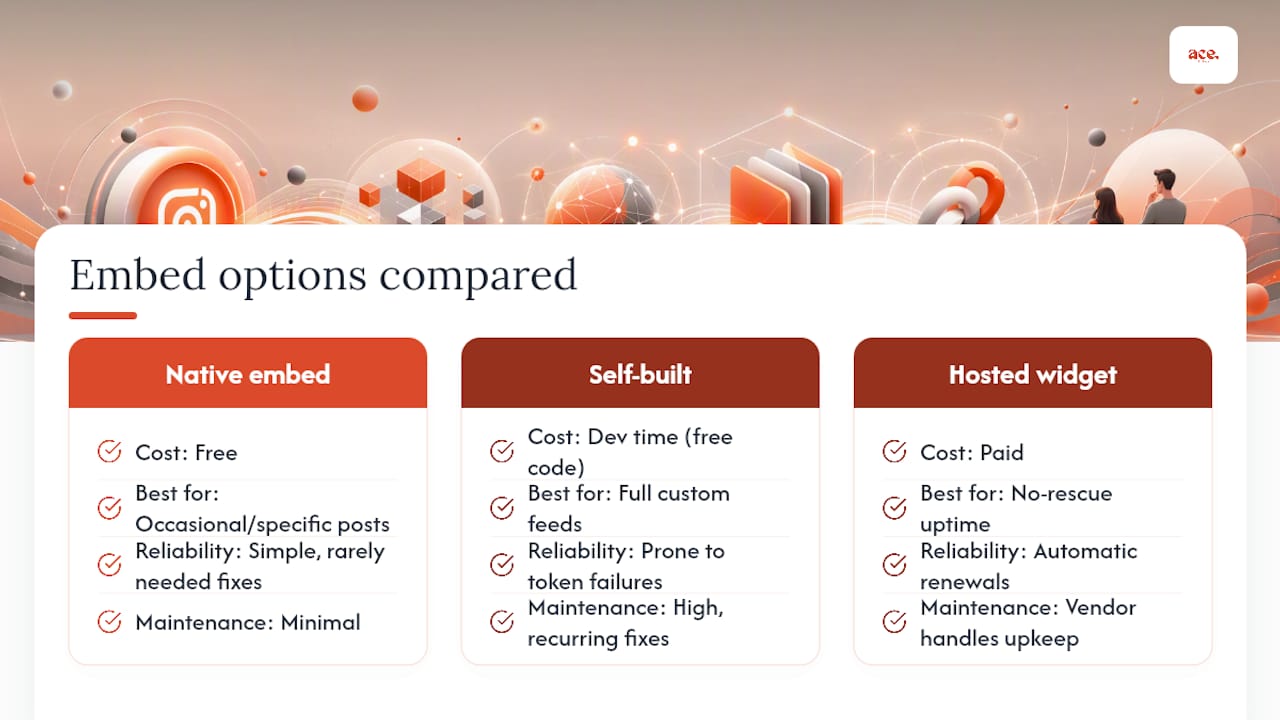
Where conventional advice falls short is token handling. Plenty of tutorials walk you through connecting an API and stop there, leaving small business owners with a feed that works beautifully for three weeks and then goes blank with no explanation. Automatic token renewal isn't a nice extra feature on a widget's pricing page. It's the entire reason to pick a hosted option over building something yourself.
My honest read: prioritise reliability over customisation. A slightly plainer feed that never breaks beats a beautifully styled one that needs rescuing every month. If you don't have time for that rescue mission, a managed platform that handles the embed block for you, like the setup Ace-sites offers, removes the problem entirely rather than just delaying it.
— Gabbi
Get your Instagram feed live without the technical hassle
Ace-sites gets you past every step covered above in one go: a professional website with embed-ready blocks built in, live in under a day, without agency fees or hidden costs stacking up afterwards.
Compare that to hiring a developer for a custom oEmbed setup or paying an agency to babysit a hosted widget's token renewal, and the appeal is obvious: Ace-sites bundles the Custom HTML flexibility you need for your Instagram feed alongside built-in SEO tools and a blog manager, so the same site doing your embed also works to get you found. If you'd rather have it built entirely for you, the done-for-you website option includes your Instagram feed set up and tested before you ever see the invoice. Check the full feature list on the Ace-sites features page, and if you're building your own social presence around it, Influenna's creator resources are worth a look too.
Ready to see it live? Start with the AI website builder and have your Instagram feed embedded before the end of the day.
Sources
- Embed an Instagram post or profile
- Embed an Instagram Post - Meta for Developers
- How to refresh Instagram Basic Display API token automatically (Stack Overflow)
- nocodeapi/embed-instagram-feed