
You can connect a purchased domain to your website either by pointing its nameservers to your host or by adding DNS records at your registrar. Both work. Only one is right for your setup.
If you want your host to manage everything, from SSL to subdomains, changing your nameservers is the quicker route. If you need to keep email or other services running through your registrar, you're better off adding A, AAAA, CNAME or ALIAS/ANAME records instead and leaving the registrar in charge of DNS.
Either way, the next action is the same: log into your domain registrar account and find the DNS or nameserver settings. Everything below walks you through both paths, plus how to check it's actually worked.
Key Takeaways
Connecting a domain comes down to choosing between nameservers, which hand full DNS control to your host, and DNS records, which keep that control at your registrar.
| Point | Details |
|---|---|
| Pick your method first | Use nameservers if your host should manage everything; use A/CNAME records if email must stay at the registrar. |
| Protect your email | Never remove MX records during a nameserver change unless the new host will manage email itself. |
| Verify with real tools | Run dig or nslookup against NS, A and CNAME records to confirm the change has actually taken effect. |
| Allow proper time | Most DNS changes show within hours, but full propagation can take up to 48 hours. |
| Let Ace-sites handle it | Ace-sites connects your domain as part of building your site, including SSL, so you skip the DNS admin entirely. |
Where to check the official guidance
- GitHub Pages custom domain docs for apex A records and CNAME setup
- Cloudflare Pages custom domains for zone and nameserver configuration
- Squarespace's domain connection guide as an example of a full CNAME and A record walkthrough
- Use
dig,nslookup, or any online DNS propagation checker to confirm your own changes have taken effect
Table of Contents
- What you need before you edit DNS
- Nameservers or DNS records: which should you use?
- Step-by-step: point your domain by changing nameservers
- Step-by-step: point your domain using A, AAAA, CNAME or ALIAS/ANAME records
- Site not showing up? Fixing common connection problems
- How do you check your domain is pointing correctly?
- Can you point multiple domains to one website?
- When should you contact your registrar or host?
- Using domain forwarding when you don't have full DNS control
- Sources
What you need before you edit DNS
Get these ready before you touch anything:
- Your registrar login, with full access to DNS settings (if someone else manages this, get their help or transfer instructions now)
- Your hosting provider's control panel, or the specific nameserver values or A/CNAME targets they've given you
- Access to your email provider's settings if your inbox runs through this domain, so you don't accidentally wipe MX records
- A copy of your current DNS settings. A screenshot takes ten seconds and saves you if anything goes wrong
Pro Tip: Copy and paste every value rather than typing it out. A single mistyped character in a nameserver or IP address will take your whole site offline. Also check whether DNSSEC is switched on at your registrar. It sometimes needs disabling before a nameserver change will go through.
Nameservers or DNS records: which should you use?
Both methods point traffic to your site, but they hand over control in different ways.
Changing your nameservers delegates your entire domain's DNS to your host. Once that switch happens, your host can automatically manage records for your website, email, subdomains and SSL certificate without you touching anything else. This is the industry-recommended route when you want one provider handling the lot.

Adding DNS records keeps your registrar as the DNS provider. You add specific A, AAAA, CNAME or ALIAS/ANAME entries that point only your web traffic to the host, while everything else (email included) stays exactly where it was.
Here's how the outcomes differ in practice:
- Ease: nameservers are simpler to set up once, since the host handles the rest automatically
- Control: DNS records give you more granular control over exactly what moves and what doesn't
- Email risk: nameservers can disrupt email if your registrar was handling MX records and the new host doesn't replicate them; DNS records leave email untouched by default
Pro Tip: Unless you rely on registrar-hosted email or another registrar-based service, nameservers are usually the simplest way to get your site live and keep it maintained.
Step-by-step: point your domain by changing nameservers
This is the fastest way to connect custom domain settings to a host that manages DNS for you.
- Log into your domain registrar account.
- Find the DNS or "nameserver" settings for your domain.
- Replace the existing nameservers with the ones your host has given you.
- Save the change and confirm it's applied.
Nameserver values usually look generic, something like ns1.host.example and ns2.host.example. Copy them exactly as your host provides them. Don't add or remove characters, and don't assume a typo will "sort itself out" during propagation. It won't.
Once saved, verify the change with:
dig NS yourdomain.comnslookup -type=ns yourdomain.com
Either command should return your new host's nameservers. If it still shows the old ones, the change hasn't propagated yet (more on timing shortly).
A few safety notes worth taking seriously:
- Changing nameservers hands over MX record control too. Don't remove existing MX records unless you're certain your new host will manage email, or you'll stop receiving messages.
- Keep your screenshot of the original nameserver values. If anything breaks, you can revert in minutes rather than guessing.
- If DNSSEC was enabled at your registrar, you may need to disable it first, since it can block or delay a nameserver switch.
Step-by-step: point your domain using A, AAAA, CNAME or ALIAS/ANAME records
If you need to keep DNS at your registrar (perhaps for email or another service), this is your method for how to point a domain without giving up control.
- Get the exact target values from your host: an IP address for A/AAAA records, or a hostname for CNAME.
- Open your registrar's DNS manager.
- Add or edit the records exactly as your host specifies.
- Save and wait for propagation.
For a real-world example, GitHub Pages asks you to add the custom domain in your repository settings first, then set four A records at your apex domain pointing to GitHub's IP addresses, with a CNAME on www pointing to your GitHub Pages default domain.
Your apex domain (example.com) generally needs A records or an ALIAS/ANAME record, since apex domains can't use a standard CNAME. Your www subdomain typically takes a CNAME pointing to your host.
Skipping the platform's own domain settings before touching DNS is a common mistake. Cloudflare's own guidance notes that adding DNS records before registering the domain in the platform dashboard can leave it failing to resolve entirely.
Avoid wildcard records (*.example.com) unless you fully understand the risk. An unused wildcard pointing at an unclaimed service can open the door to domain takeover.
To check it's working, run dig A yourdomain.com and compare the returned IP against what your host expects. The most common mistakes are a mistyped host value or a stray trailing dot in the record.
Site not showing up? Fixing common connection problems
A handful of symptoms account for nearly every domain connection issue.
Still seeing the old site. This usually means DNS hasn't propagated yet, or your browser and local network have cached the old address. Try a different device or network before assuming something's broken.
Browser SSL warning. Often caused by the SSL certificate not yet reissuing for the new domain, which can lag slightly behind DNS changes.
Email suddenly stops working. Almost always a missing or overwritten MX record, usually from a nameserver change that didn't carry the old email settings across.
Domain shows a parked page. The domain is still pointing at the registrar's default page rather than your host, meaning your DNS or nameserver change hasn't taken effect or was entered incorrectly.
Run these checks before assuming the worst:
digornslookupagainst the relevant record type (NS, A, CNAME)- An online DNS propagation checker to see how the change looks from different locations worldwide
- A scan for stray or conflicting CNAME entries, or a missing A record where one's expected
Pro Tip: Resist the urge to keep re-saving your DNS settings while you wait. Repeated changes during propagation can reset the timers involved and actually delay things further, according to Valimail's guidance on propagation. Clear your local DNS cache and try from another network before you touch anything again.
How do you check your domain is pointing correctly?
Run these commands to confirm success:
dig NS yourdomain.comfor nameservers,dig A yourdomain.comfor the apex IP,dig CNAME www.yourdomain.comfor the www subdomain- An online DNS checker to see propagation status across multiple regions
- An SSL checker to confirm your certificate has issued correctly for the new domain
Most changes are visible within a few hours, though DNS propagation can take up to 48 hours to reach every corner of the internet. If you're still seeing old records after two full days, something's misconfigured rather than simply slow, and it's worth digging further or contacting support.
Can you point multiple domains to one website?
Yes. Most hosting platforms let you connect several domains to a single site, with one set as your primary address and the rest parked or redirected to it. There's typically no hard limit on how many you can attach.
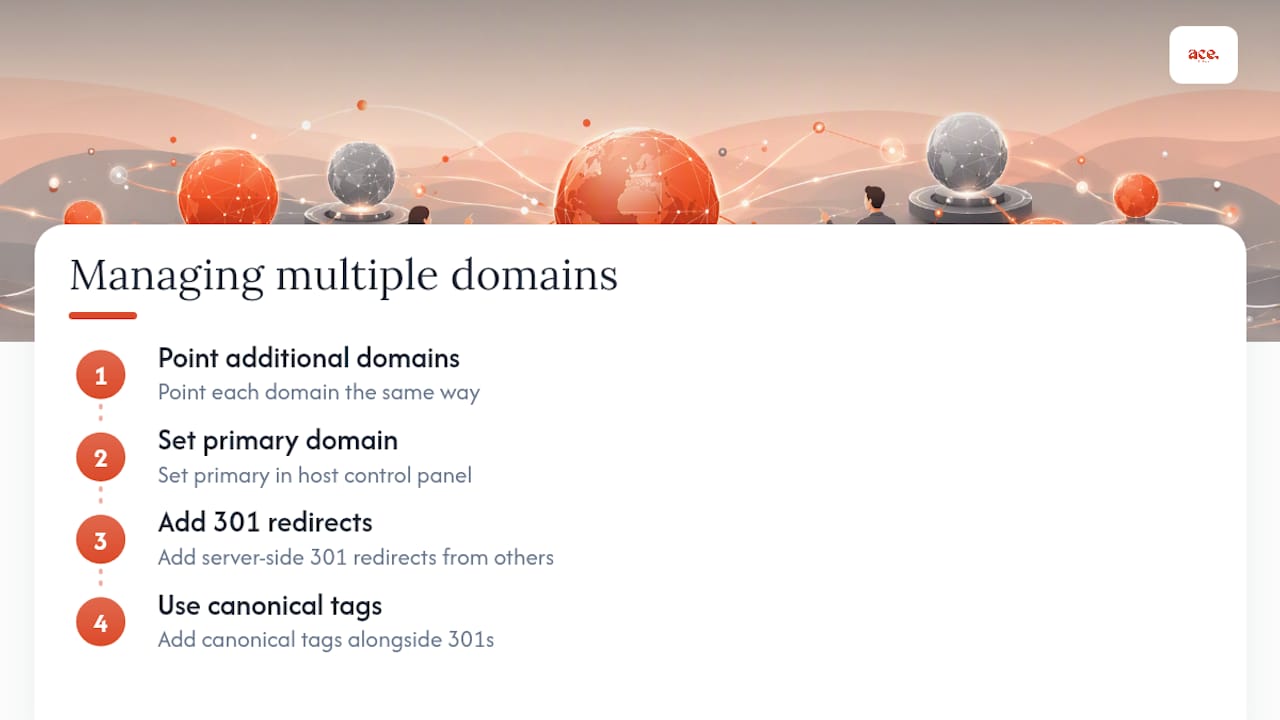
Point each additional domain the same way you pointed the first, then set your primary domain in your host's control panel and add 301 redirects from the others.
Pro Tip: Always use canonical tags alongside server-side 301 redirects on secondary domains. Without them, search engines can treat identical content on multiple domains as duplicate, which quietly hurts your rankings.
When should you contact your registrar or host?
Get in touch if your domain still isn't resolving after 48 hours, you're seeing errors after a nameserver change, DNSSEC is blocking a change, or you suspect something more serious like a takeover attempt.
Give support your domain name, screenshots of your current DNS settings, the exact nameserver or record values you tried to set, the timestamp of your change (in UTC), and the output from your dig or nslookup tests. That's usually enough for them to diagnose the issue in one message rather than five.
Using domain forwarding when you don't have full DNS control
Sometimes you simply don't have the access you need. Maybe your domain sits with a workplace IT team, a previous developer still holds the login, or your registrar's interface only offers limited forwarding options rather than full record editing.
Domain forwarding (sometimes called redirection) is the workaround. Instead of pointing DNS records directly at your host, you set up a forward that sends visitors from your domain straight to your website's existing address, whatever that happens to be. Most registrars offer basic forwarding as a built-in feature, often with no DNS knowledge required at all.
The trade-off is control and polish. A basic forward can sometimes show the destination URL in the browser bar rather than your own domain, and it may not carry SSL properly unless your registrar supports secure forwarding. It's also entirely dependent on your registrar keeping that forward active. If they ever remove the feature or you switch registrars, the redirect breaks.
Forwarding is a reasonable stopgap while you sort out proper access. It's not a long-term substitute for pointing your domain directly at your host through nameservers or DNS records, which gives you a cleaner setup, full SSL support, and no dependency on a third party's forwarding tool staying available. Treat it as a bridge to get live today, and switch to a direct connection once you have registrar access sorted.
A note on how Ace-sites handles this for customers
We connect your domain for you, so none of this falls on your shoulders.
Skip the DNS admin altogether
If reading about nameservers and TXT records makes your eyes glaze over, you're not alone, and you don't actually need to become an expert in it. When you build your site with Ace-sites, connecting your domain is handled as part of getting you live, whether you're setting up the platform yourself or opting for the done-for-you build.

That matters most if you've already lost an afternoon to a mistyped nameserver value or a support ticket that's gone quiet. Ace-sites customers get their domain properly connected, SSL included, without needing to touch a DNS panel at all. If you'd rather hand the whole thing over and focus on running your business, take a look at the done-for-you website build, where domain setup is one less thing on your list.
Sources
- Managing a custom domain for your GitHub Pages site — GitHub Docs
- Custom domains for Cloudflare Pages — Cloudflare Developers
- Connect a third-party domain to your Squarespace site — Squarespace Help Centre
- Multisite — OVHcloud web hosting